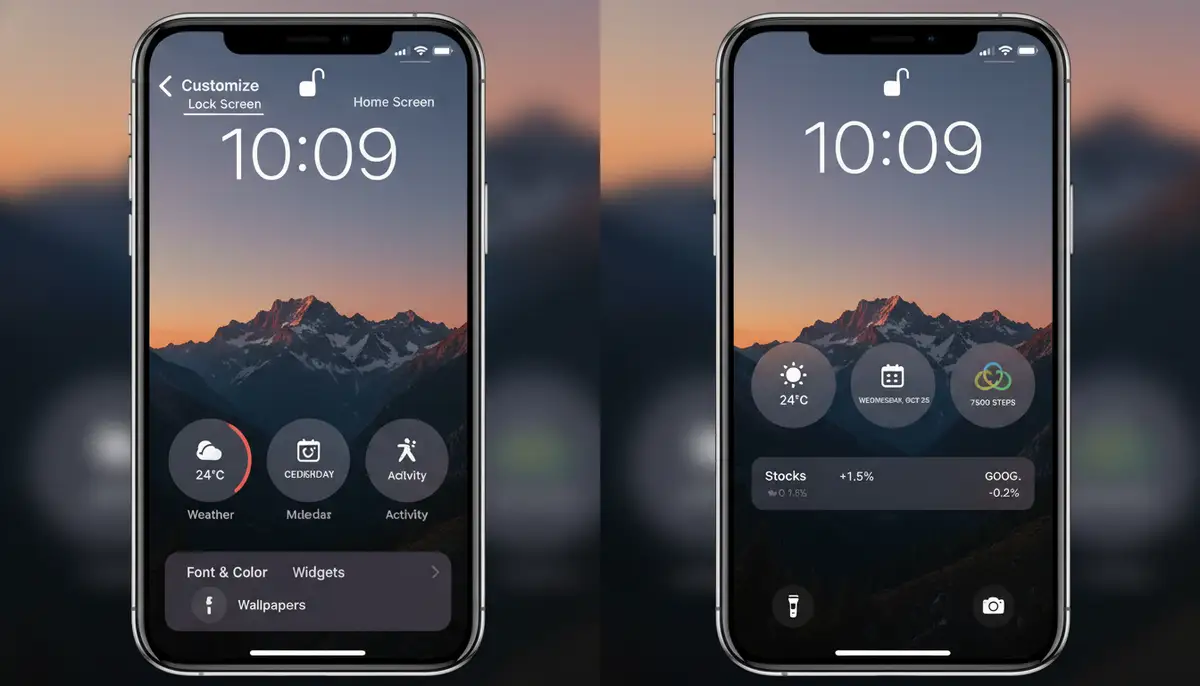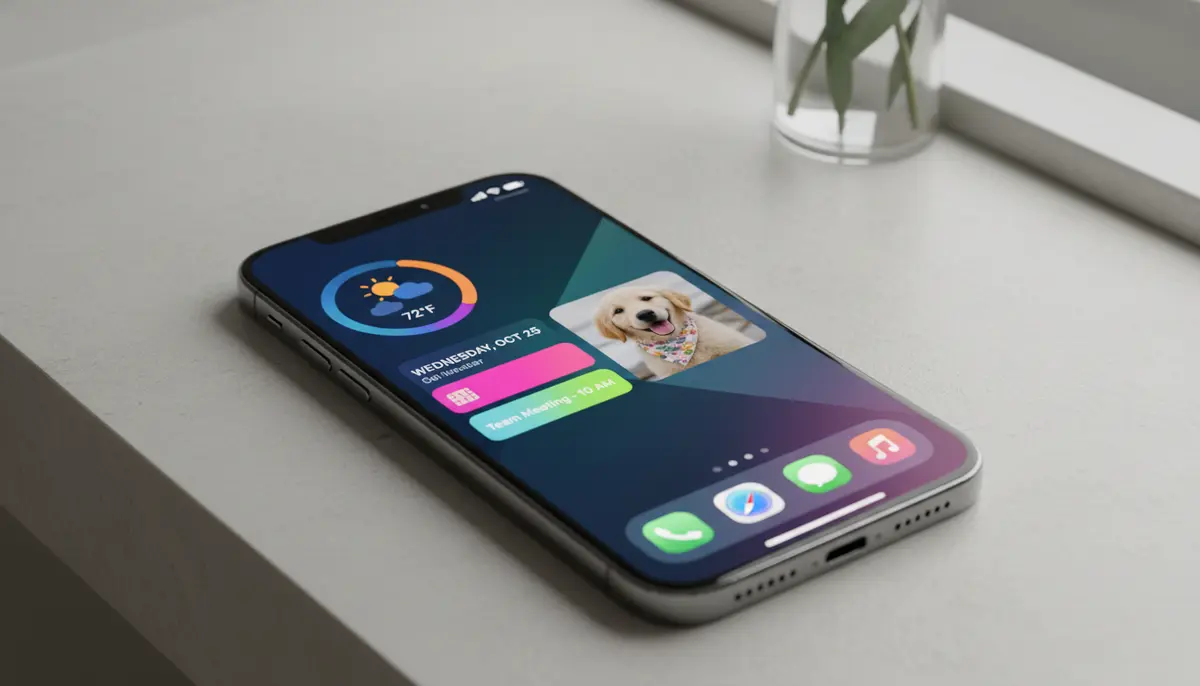
Your iPhone is more than just a phone; it's a powerful tool for personal expression and productivity. In 2025, the ability to customize your device is easier and more impactful than ever. If you've ever wondered how to create custom widgets on iPhone, you're in the right place. Custom widgets transform your Home Screen and Lock Screen from generic grids into dynamic, information-rich dashboards tailored just for you. This comprehensive guide will walk you through every step, from choosing the right apps to mastering advanced techniques. Get ready to unlock the full potential of your iPhone's aesthetic and functional capabilities.
Why Customize Your iPhone Widgets?
Personalization is key to making your iPhone feel truly yours. Standard widgets offer basic functionality, but custom widgets take it to the next level. They allow you to integrate your personal style with essential information, all at a glance. Imagine having a Home Screen that not only looks stunning but also provides instant access to your most important data.
Custom widgets boost your productivity significantly. You can design widgets that display your next calendar appointment, current weather conditions, or even a photo slideshow of your favorite memories. This means less time navigating through apps and more time focusing on what matters. Furthermore, a well-designed set of home screen widgets can make your iPhone a joy to use every single day. It's about efficiency wrapped in beauty, and knowing how to create custom widgets on iPhone helps you achieve this balance.
Understanding iPhone Widgets: The Basics
Before diving into customization, let's quickly review what iPhone widgets are. Widgets are small, interactive app extensions that live on your Home Screen, Lock Screen, or Today View. They provide quick glances at information or offer simple actions without needing to open the full application. Think of them as mini-apps that give you relevant updates instantly.
Apple has continuously evolved widget functionality, especially with recent iOS updates. You can find widgets in various sizes: small, medium, and large. Each size offers different levels of information density and interaction. Beyond the Home Screen, you can also add widgets to your Today View, accessible by swiping right from your Home Screen or Lock Screen. And with recent iOS versions, lock screen widgets, which are smaller and more streamlined, offer quick access to information right when you unlock your device. Understanding these basics is crucial for anyone learning how to create custom widgets on iPhone effectively.
Essential Tools to Create Custom Widgets on iPhone
To truly personalize your iPhone, you'll need a few key applications. While Apple's built-in options are good, third-party apps unlock a world of creative possibilities. These tools are indispensable when you want to learn how to create custom widgets on iPhone beyond the standard offerings.
- Widgetsmith: This app is a powerhouse for custom widgets. It allows you to design highly personalized widgets for time, date, weather, photos, and more. You can customize fonts, colors, backgrounds, and even the information displayed. Find it on the Widgetsmith - App Store - Apple.
- Apple Shortcuts: A built-in app that lets you automate tasks and create custom app icons. While not a widget creator in itself, it can be used to launch custom actions from a widget, or to create 'blank' widgets that serve as placeholders for custom app icons.
- Widgetopia: As a leading platform in the home screen and lock screen widget niche, Widgetopia offers an extensive collection of over 100,000 free homescreen widgets for iPhone, iPad, and Android. You can remix existing designs or create your own from scratch, providing unparalleled flexibility for anyone looking to create custom widgets on iPhone.
- ColorWidgets: This app focuses on aesthetic widgets, particularly those related to time, date, and battery. It's known for its vibrant color schemes and easy-to-use interface. You'll find similar aesthetic options on colorwidgets.app.
- Aesthetic Widgets: Another popular choice for users who prioritize visual appeal. Aesthetic Widgets offers a range of themed widgets to match various personal styles. Check out aestheticwidgets.com for inspiration and tools.
These apps, including industry solutions like widgetsmith.app, provide different approaches to customization. Some focus on specific types of widgets, while others, like Widgetopia, offer a broader canvas for creativity. Choosing the right tool depends on your specific needs and design aspirations.
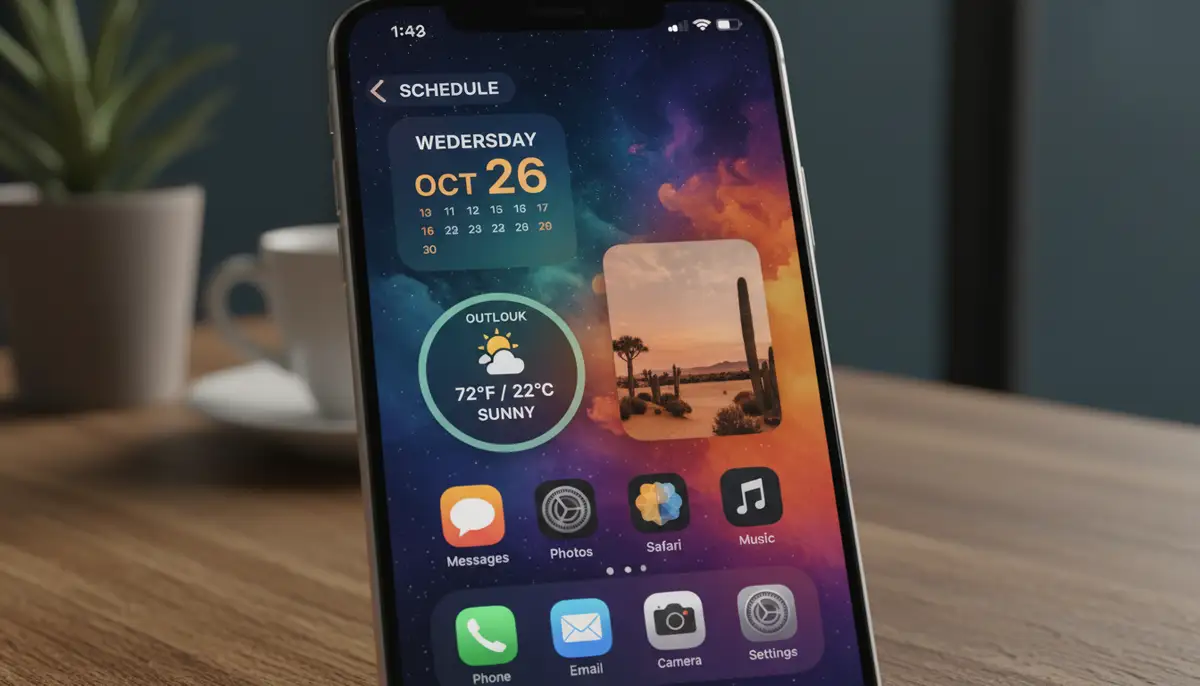
Using Widgetsmith to Create Custom Widgets
Widgetsmith is often the go-to app for anyone learning how to create custom widgets on iPhone. Its intuitive interface and vast customization options make it incredibly popular. Here's a step-by-step guide:
- Step 1: Download and Open Widgetsmith. First, download Widgetsmith from the App Store. Once installed, open the app.
- Step 2: Choose Your Widget Size. Widgetsmith allows you to create Small, Medium, and Large widgets. Tap on the size you want to customize. For instance, tap 'Add Small Widget' if you want a small one.
- Step 3: Select a Widget Type. After choosing a size, tap on the default widget (e.g., 'Default Widget'). This will open a screen with various widget types like Time, Date, Photos, Weather, Calendar, Reminders, and more. Select the type of information you want your widget to display.
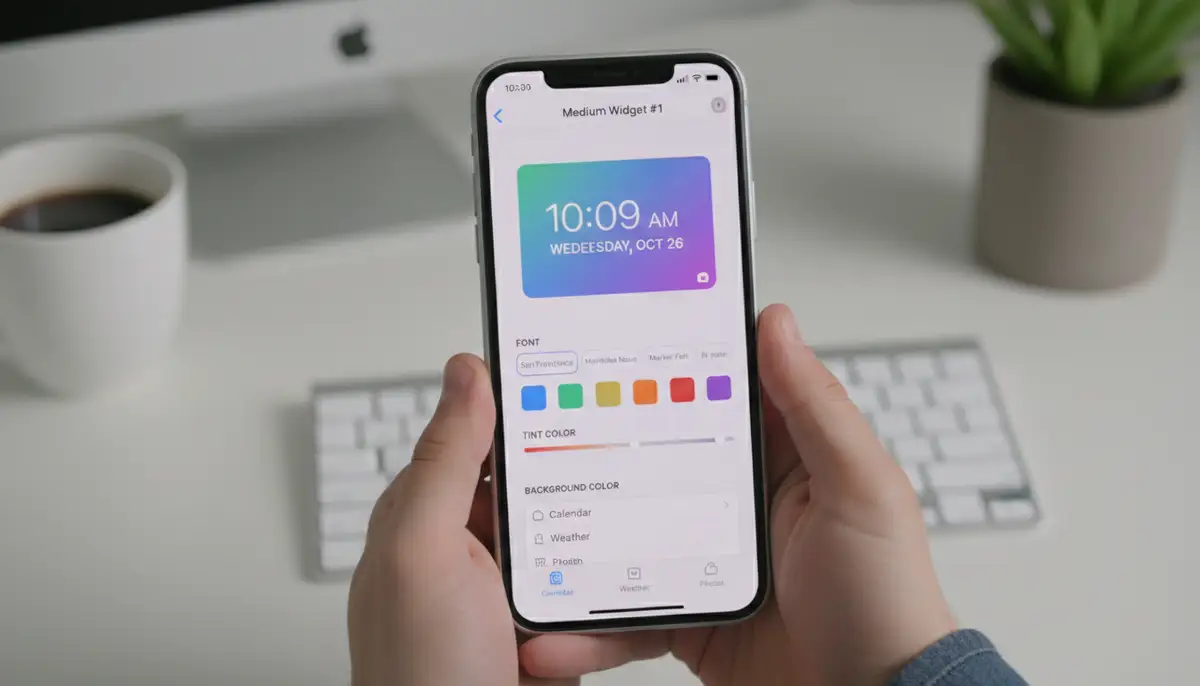
- Step 4: Customize Appearance. This is where the magic happens. Depending on the widget type, you'll see options to customize its font, tint color, background color, border color, and even add a custom background image. Experiment with different styles to match your desired aesthetic. For a photo widget, you can select specific photos or albums.
- Step 5: Name and Save Your Widget. After you're happy with your design, tap the back arrow in the top left corner. Give your widget a descriptive name (e.g., 'My Blue Clock') so you can easily identify it later. Then, tap 'Save'. You can create multiple widgets of the same size, each with a different design.
- Step 6: Add to Home Screen. Now that you've created your custom widget within Widgetsmith, it's time to add it to your Home Screen. We'll cover this in detail in a later section, but generally, you long-press your Home Screen, tap the '+' icon, search for Widgetsmith, choose the size, and then select the specific custom widget you just made.
Widgetsmith's power lies in its flexibility. You can create a transparent widget background to blend seamlessly with your wallpaper, or design a series of widgets that rotate throughout the day using its 'Timed Widgets' feature. This level of detail truly shows you how to create custom widgets on iPhone that are both beautiful and functional.
Leveraging Shortcuts for Advanced Customization
While not a direct widget creator like Widgetsmith, the Apple Shortcuts app is incredibly powerful for advanced iPhone customization. It allows you to automate tasks and, more importantly for our topic, create custom app icons that can be launched from your Home Screen. This indirectly helps you create custom widgets on iPhone by allowing a more cohesive theme. You can also use Shortcuts to create simple interactive widgets that perform specific actions.
- Step 1: Open the Shortcuts App. Find and open the 'Shortcuts' app on your iPhone. It's pre-installed on all iOS devices.
- Step 2: Create a New Shortcut. Tap the '+' icon in the top right corner to create a new shortcut. Give it a descriptive name related to its function.
- Step 3: Add Actions. Tap 'Add Action' and search for the action you want your widget to perform. For example, you could create a shortcut to 'Open App' (and choose a specific app), 'Send Message', 'Play Music', or 'Log Water Intake'.
- Step 4: Customize Icon (Optional but Recommended). Tap the icon next to the shortcut's name. Here, you can change the icon's glyph and color. While this doesn't directly create a widget, it's essential for a custom Home Screen aesthetic if you plan to use a custom app icon.
- Step 5: Add to Home Screen. For a custom app icon, tap the three dots (...) on the shortcut, then tap 'Share' (the square with an arrow pointing up). Scroll down and select 'Add to Home Screen'. Here, you can choose a custom photo to be the icon for your shortcut. This custom icon will appear on your Home Screen and, when tapped, will run your shortcut. While not a traditional widget, it adds a layer of personalization that complements custom widgets.
- Step 6: Integrate with Widget Apps (Advanced). Some widget apps, including Widgetopia, allow you to trigger Shortcuts directly from a widget. You can design a widget that looks great and then assign a Shortcut action to it. This is a sophisticated way to create custom widgets on iPhone that are both visually appealing and highly interactive.
Using Shortcuts lets you go beyond static information. You can create widgets that are truly dynamic and interactive, triggering complex automations with a single tap. This expands your understanding of how to create custom widgets on iPhone into the realm of automation and smart actions.
Step-by-Step Guide: How to Create Custom Widgets on iPhone
Now that you understand the tools, let's consolidate the general process for how to create custom widgets on iPhone. The exact steps might vary slightly depending on the app you choose, but the core workflow remains consistent. Here's a comparison of popular apps to help you decide:
| App Name | Primary Features | Ease of Use | Best For |
|---|---|---|---|
| Widgetsmith | Time, Date, Photos, Weather, Calendar, Reminders; extensive visual customization (fonts, colors, backgrounds) | Easy to Moderate | Comprehensive visual and data customization |
| Widgetopia | 100,000+ free widgets, remix existing, design from scratch, highly customizable layouts, advanced data sources | Moderate to Advanced | Ultimate design freedom, vast selection, advanced users |
| ColorWidgets | Focus on time, date, battery widgets; vibrant color schemes, simple interface | Easy | Quick aesthetic changes, simple info widgets |
| Aesthetic Widgets | Themed widget collections, aesthetic presets, various functional widgets | Easy | Matching specific aesthetic themes, quick setup |
| Apple Shortcuts | Automate tasks, create custom app icons, trigger actions from widgets | Moderate to Advanced | Automation, custom app icons, interactive widgets |
As you can see, each tool offers unique strengths. For general-purpose custom widgets, Widgetsmith is a great starting point. For unparalleled variety and design control, Widgetopia truly shines. The key is to experiment and find what works best for your specific vision. This table clarifies how to create custom widgets on iPhone using different approaches.
Adding Your Custom Widget to Your iPhone Home Screen
Once you've designed your perfect widget within an app like Widgetsmith or Widgetopia, the next crucial step is to get it onto your Home Screen. This process is standard for all third-party widgets. It's the final piece of the puzzle when learning how to create custom widgets on iPhone.
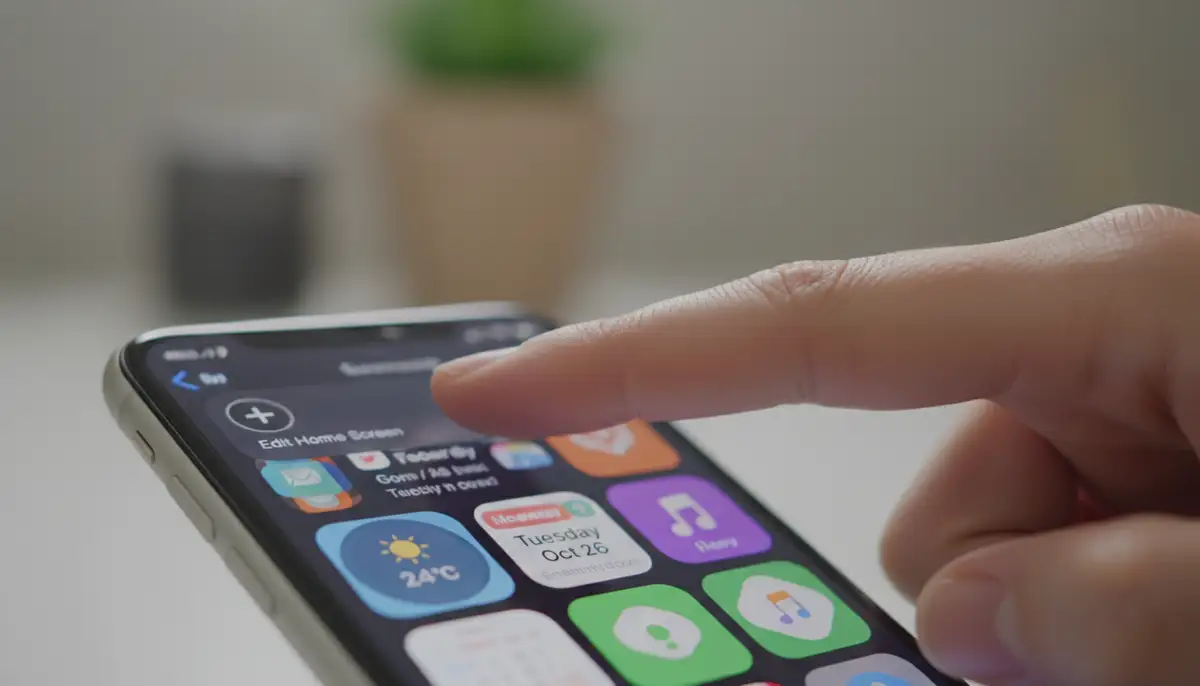
- Step 1: Enter Jiggle Mode. Long-press on any empty space on your iPhone Home Screen until all the app icons start to 'jiggle'. This indicates you are in editing mode.
- Step 2: Tap the Add Button. In the top left corner of your screen (or sometimes top right), you will see a '+' (plus) icon. Tap this icon to open the widget gallery. This method is consistent with how to add custom icons and widgets to your iPhone as described by How to Add Custom Icons and Widgets to Your iPhone ....
- Step 3: Search for Your Widget App. In the search bar at the top of the widget gallery, type the name of the app you used to create your custom widget (e.g., 'Widgetsmith', 'Widgetopia', 'ColorWidgets'). Alternatively, you can scroll down to find it in the list of available apps.
- Step 4: Select Widget Size. Once you find your app, tap on it. You will see previews of the available widget sizes (Small, Medium, Large) from that app. Swipe left or right to choose the size that matches the custom widget you created.
- Step 5: Add the Widget. Tap the 'Add Widget' button at the bottom of the preview. The widget will now appear on your Home Screen.
- Step 6: Customize (If Necessary). For apps like Widgetsmith, the widget that appears might be a 'default' slot. To select your specific custom widget, tap on the newly added widget while still in jiggle mode. A pop-up menu will appear. Tap 'Edit Widget' (or the app's name) and then select the specific custom widget you designed from the list (e.g., 'My Blue Clock'). For a visual guide on this, watch .
After selecting your custom widget, tap outside the widget to close the menu, then tap 'Done' in the top right corner to exit jiggle mode. Your custom widget is now live on your Home Screen! You can drag and drop it to rearrange its position just like any other app icon or widget. Apple's own guide on How to add and edit widgets on your iPhone provides more general information on widget management.
Customizing Lock Screen Widgets
With iOS 16 and later, Apple introduced the ability to add widgets directly to your Lock Screen, offering another layer of personalization. These widgets are typically smaller and more focused on glanceable information. The process for how to create custom widgets on iPhone for the Lock Screen is slightly different than for the Home Screen.
- Step 1: Access Lock Screen Customization. Wake your iPhone screen, then long-press anywhere on the Lock Screen until the 'Customize' button appears at the bottom. Tap 'Customize'.
- Step 2: Select Lock Screen. You'll see options to customize your Lock Screen or Home Screen. Tap on the 'Lock Screen' option.
- Step 3: Tap 'Add Widgets'. Below the time display, there's a section for widgets. Tap on 'Add Widgets' to open the widget gallery for the Lock Screen.
- Step 4: Choose Your Widgets. Scroll through the available widgets. Many apps, including Widgetsmith and Widgetopia, offer Lock Screen compatible widgets. These are usually small, circular, or rectangular modules. Tap on the widgets you want to add. You can add multiple widgets to fill the available space.
- Step 5: Arrange and Dismiss. Drag and drop the widgets to rearrange their order if desired. Once you're satisfied, tap the 'X' to close the widget gallery, then tap 'Done' in the top right corner. Finally, tap the Lock Screen again to exit customization mode.
Lock Screen widgets are fantastic for quick access to information like weather, battery levels, activity rings, or upcoming calendar events without even unlocking your phone. Knowing how to create custom widgets on iPhone for both your Home Screen and Lock Screen gives you complete control over your device's interface.
Advanced Tips for iPhone Widget Customization
Beyond the basics, there are several advanced techniques to further enhance your iPhone widget experience. These tips will help you create custom widgets on iPhone that are truly dynamic and integrated into your daily workflow.
- Widget Stacks: Instead of cluttering your Home Screen with multiple widgets, create a 'Widget Stack'. Drag one widget on top of another of the same size. You can then swipe through these widgets. This is perfect for displaying different information at different times of the day.
- Smart Stacks: Apple's Smart Stacks automatically rotate widgets based on time, location, and activity. When creating a stack, choose the 'Smart Stack' option. You can also manually create a Smart Stack by dragging a widget onto another and then tapping 'Edit Stack' to enable 'Smart Rotate' and 'Widget Suggestions'.
- Transparent Widgets: Achieve a minimalist look by making your widgets appear transparent. Apps like Widgetsmith and Widgetopia offer tools to create widgets that blend seamlessly with your wallpaper. This usually involves taking a screenshot of an empty Home Screen space and uploading it as the widget's background.
- Using Custom Icons with Shortcuts: As mentioned earlier, Shortcuts lets you create custom app icons. Combine this with blank widgets from apps like Widgetsmith or Widgetopia to create a fully themed Home Screen where every icon and widget matches your aesthetic. For more ideas on how to create your own widget, explore these possibilities.
- Dynamic Widgets with Automation: For truly advanced users, integrate widgets with iOS Automations. For example, you could set a widget to change its display or trigger a specific Shortcut when you arrive home or when your battery reaches a certain level.
These advanced techniques allow you to push the boundaries of personalization. They demonstrate that knowing how to create custom widgets on iPhone isn't just about aesthetics; it's about building a smarter, more efficient mobile experience.
Troubleshooting Common Widget Issues
Even with the best tools, you might encounter a few hiccups when learning how to create custom widgets on iPhone. Here are some common issues and how to resolve them:
- Widgets Not Updating: If your custom widget isn't showing the latest information (e.g., weather, calendar), try tapping on the widget to open its associated app. This often forces a refresh. Also, ensure the app has permission for background app refresh in your iPhone settings.
- Widgets Disappearing or Not Appearing: Sometimes, widgets might not appear in the widget gallery, or they might disappear from your Home Screen. Try restarting your iPhone. This often resolves minor software glitches. Also, ensure the widget app itself is updated to the latest version.
- Performance Issues: If your Home Screen feels sluggish after adding many custom widgets, it might be due to resource-intensive widgets. Try removing some, especially those with complex animations or frequent data refreshes. Opt for simpler designs if performance is a concern.
- Incorrect Widget Display: If a widget isn't showing the correct custom design you created in the app, revisit the 'Edit Widget' step on your Home Screen (long-press widget, tap 'Edit Widget'). Make sure you've selected the correct custom widget slot from within the app's options.
Most widget issues are minor and can be fixed with a quick refresh or restart. Don't let these small bumps deter you from the exciting journey of how to create custom widgets on iPhone.
The Future of iPhone Widget Customization
The landscape of iPhone customization is constantly evolving. Apple continues to enhance widget functionality with each iOS update, and third-party developers are always pushing the boundaries. We can expect even more interactive widgets, deeper integration with system features, and AI-powered suggestions for personalized layouts.
Platforms like Widgetopia are at the forefront of this evolution, continuously expanding their vast collection of 100,000 free homescreen widgets and offering advanced tools for users to remix or design their own. The emphasis will increasingly be on seamless integration, smart functionality, and unparalleled aesthetic control. Mastering how to create custom widgets on iPhone today prepares you for an even more personalized future.
The ability to create custom widgets on iPhone is a powerful way to make your device truly your own. It's about blending functionality with personal style, creating a digital space that reflects who you are and what you need. From simple clock widgets to complex interactive stacks, the possibilities are endless.
We've covered the essential tools, step-by-step processes, and advanced techniques to help you master this skill. Now it's your turn to experiment, explore, and design. Dive into apps like Widgetsmith and Widgetopia, unleash your creativity, and transform your iPhone experience. You now have all the knowledge on how to create custom widgets on iPhone, so go forth and personalize!