In the fast-evolving world of Android, your smartphone's home screen is more than just a grid of app icons. It's a dynamic dashboard, a personalized hub that puts crucial information and quick actions right at your fingertips. At the heart of this transformation lies a powerful feature: the widget. If you've ever wondered 'what is widget on Android?' you're in the right place. By 2025, widgets have become indispensable tools for efficiency and personalization, offering a glimpse into your digital life without even opening an app.
Widgets are essentially miniature versions of applications. They live directly on your home screen or lock screen. They provide glanceable information and offer quick access to specific app functions. Think of them as tiny, interactive windows into your favorite apps. Understanding what is widget on Android can truly revolutionize how you interact with your device every single day.
What Exactly is a Widget on Android?
So, let's break down the core concept: what is widget on Android? An Android widget is a small, interactive application component. It resides on your device's home screen. Unlike a standard app icon, which simply launches the full application, a widget displays live, relevant information or offers immediate functionality. This means you can see the weather forecast, check your calendar, or control music playback without ever opening the full app.
Widgets act as extensions of your installed applications. They provide a 'micro-experience' of the app. This allows for quick information retrieval or task execution. For example, a music player widget lets you skip tracks. A news widget shows headlines. This direct access saves you time and taps, making your phone more efficient. Many users find that once they grasp what is widget on Android, their daily phone usage becomes much smoother.
The beauty of widgets lies in their ability to offer immediate utility. You get information at a glance. You perform actions with a single tap. This is a key distinction from just having app shortcuts. A shortcut just opens the app. A widget is a part of the app, working right on your home screen. To learn more about how to add these useful tools, you can find a comprehensive guide on how to add widgets on Android.
The Evolution of Android Widgets: From Simple to Smart
The journey of Android widgets has been remarkable. Initially, they were simple, static displays. They showed basic information like time or battery life. Over the years, they evolved significantly. Android developers embraced the potential of these mini-apps. Now, in 2025, widgets are incredibly sophisticated. They offer dynamic content, interactive elements, and even AI-powered suggestions.
Modern widgets can adapt to your usage patterns. They show you relevant information based on time of day or location. Imagine a widget showing your commute time in the morning. Then, it switches to your grocery list when you're near a store. This intelligent behavior greatly enhances user experience. It makes your home screen truly smart. Understanding what is widget on Android in this modern context highlights their advanced capabilities.
The design language for widgets has also matured. They now seamlessly integrate with your phone's overall aesthetic. They offer customization options for colors, fonts, and transparency. This allows for a truly personalized look. If you're keen on keeping up with specific types of widgets, our ultimate guide to the Android weather widget provides a deep dive into staying informed about the weather right from your home screen.
Types of Widgets You'll Find on Android
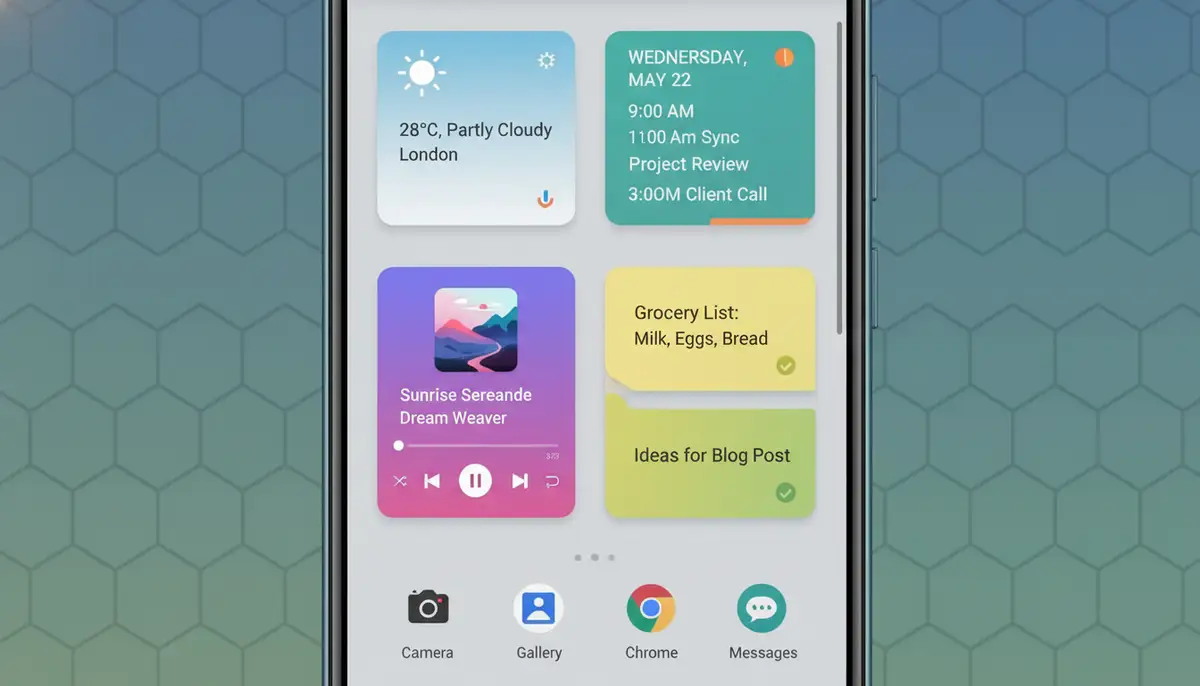
The variety of widgets available on Android is vast. There's a widget for almost every app. Each type serves a unique purpose. Knowing the different categories helps you choose the best ones for your needs. This knowledge is crucial when you consider what is widget on Android and how to best utilize them.
- Information Widgets: These display data at a glance. Examples include weather forecasts, news headlines, stock tickers, or email counts.
- Collection Widgets: These show a collection of items from an app. Think of your photo gallery, a list of contacts, or a playlist from your music app.
- Control Widgets: These allow you to perform quick actions without opening the app. Examples include toggling Wi-Fi, adjusting screen brightness, or controlling smart home devices.
- Productivity Widgets: These help you manage your tasks and time. Calendar widgets, to-do lists, and note-taking widgets fall into this category.
- Communication Widgets: These provide quick access to your messages or call logs. You can often see recent conversations or speed dial contacts directly from the home screen.
For example, a clock widget is a classic. It shows the time and date. Some even offer world clocks or alarms. To explore more about this essential tool, check out our ultimate guide to the Android clock widget. Understanding these different types will help you better answer what is widget on Android for your personal device setup.
Why Use Widgets? The Benefits of Having Them
Once you understand what is widget on Android, the next logical question is: why should you use them? The benefits are numerous. They significantly enhance your smartphone experience. They make your device more personal and more efficient. These small tools pack a powerful punch in terms of utility.
- Instant Information Access: Get updates without opening apps. See your next appointment, current weather, or unread emails at a glance.
- Increased Productivity: Perform quick actions directly from your home screen. Skip songs, mark tasks complete, or toggle settings faster.
- Enhanced Personalization: Customize your home screen to reflect your style and needs. Arrange widgets to create a truly unique and functional layout.
- Time-Saving: Reduce the number of taps and swipes needed to access information or perform tasks. This streamlines your daily interactions with your phone.
- Better Organization: Keep essential information consolidated and accessible. This helps declutter your app drawer and focus on what matters most.
Widgets are about making your digital life simpler. They reduce friction. They put control right where you need it most. They transform your home screen from a static launcher into a dynamic control center. This is a core reason why knowing what is widget on Android is so valuable. They are truly micro-versions of applications, as detailed in this guide on creating basic Android app widgets.
| Feature | Standard App Icon | Android Widget |
|---|---|---|
| Purpose | Launch full app | Display info / Quick actions |
| Interaction | Tap to open | Glanceable, interactive |
| Information Display | No live info | Live, dynamic info |
| Space Usage | Small, fixed size | Variable size, customizable |
| Efficiency | Requires app launch | Instant access, saves taps |
How to Add and Customize Widgets on Your Android Device
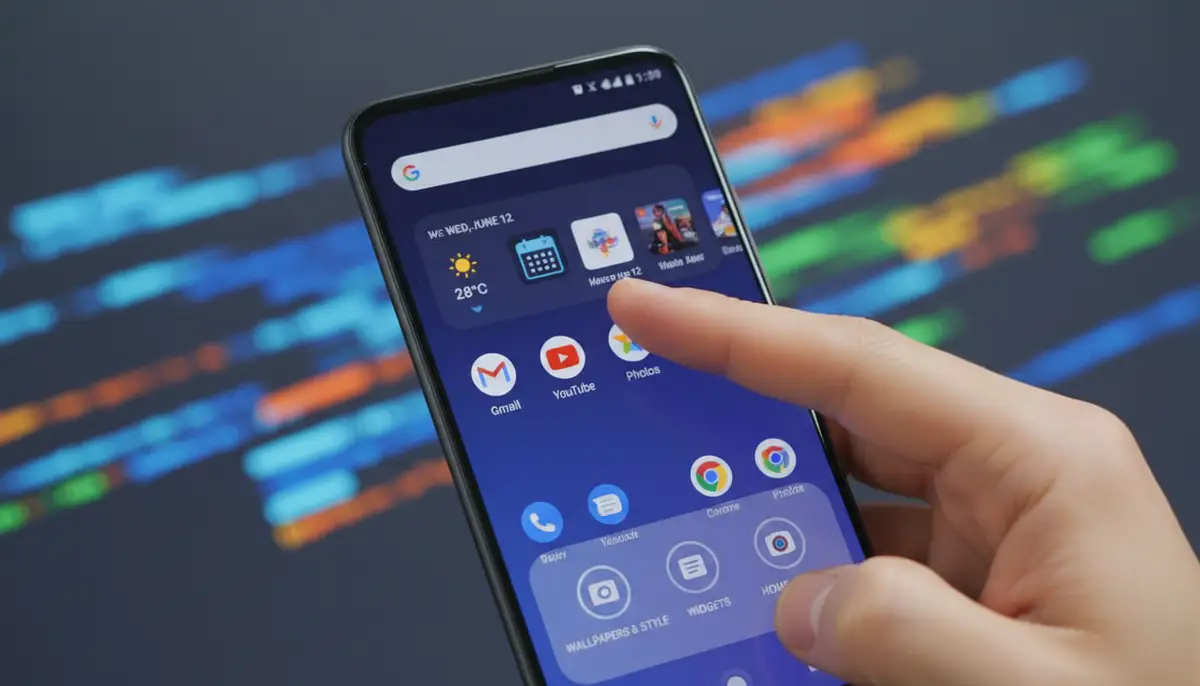
Now that you understand what is widget on Android, let's get practical. Adding and customizing widgets is straightforward. It's one of the easiest ways to personalize your phone. The process is intuitive and designed for all users. You don't need to be a tech expert to get started.
- Step 1: Long-Press Your Home Screen: Find an empty space on your Android home screen. Press and hold your finger on it for a few seconds. This will bring up a customization menu.
- Step 2: Select 'Widgets': From the menu that appears, tap on the 'Widgets' option. This will open a list of all available widgets from your installed apps.
- Step 3: Browse and Choose: Scroll through the list. Widgets are usually grouped by app. Find the widget you want to add. You might see different sizes or styles for the same app.
- Step 4: Add to Home Screen: Tap and hold the desired widget. Drag it to your preferred spot on the home screen. Release your finger. Some widgets might prompt you for initial setup or preferences.
- Step 5: Resize and Reposition: Once placed, you can often resize a widget. Tap and hold it again. Drag the edges to adjust its size. You can also drag it to a different location on your home screen or another home screen panel.
Many widgets offer further customization. After placing it, tap the widget. You might find options to change its color, transparency, or the data it displays. Experiment with these settings to match your aesthetic and functional needs. This deep level of control is a key aspect of what is widget on Android in 2025. Samsung also provides useful guidance on adding widgets to your Android smartphone or tablet.
Advanced Widget Features and Customization Tips
Beyond basic placement, modern Android offers advanced features. These take your widget experience to the next level. Understanding these features helps you maximize your home screen's potential. They are integral to fully grasping what is widget on Android in its current state.
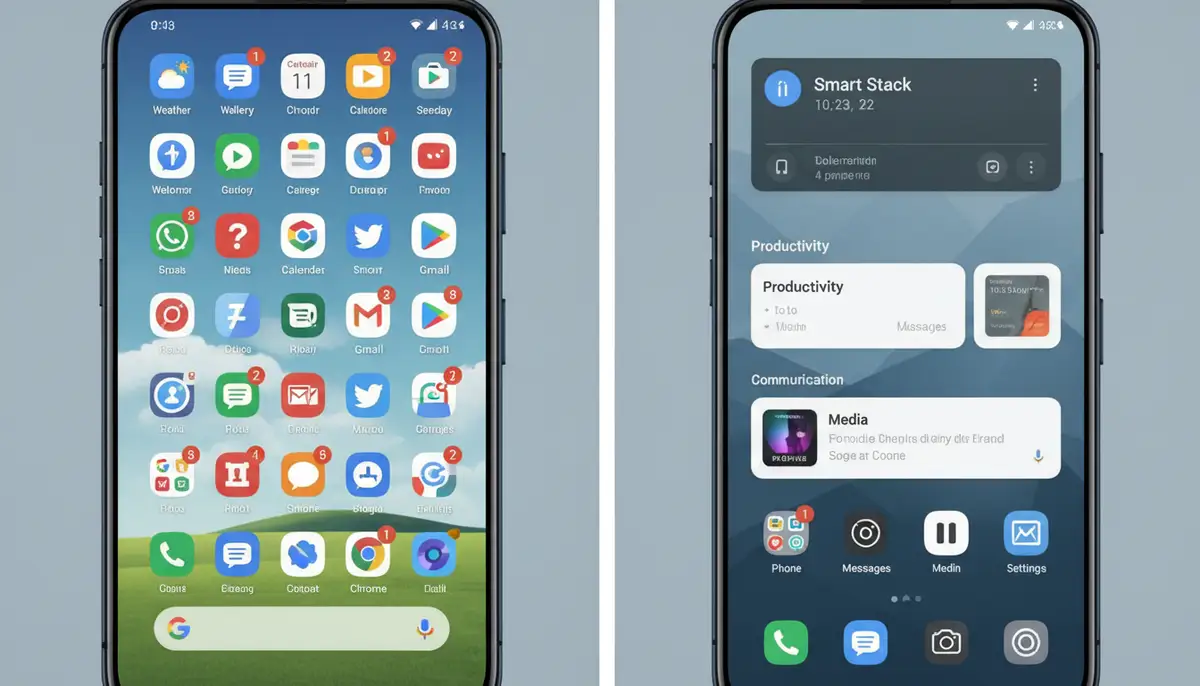
- Widget Stacks: Introduced in newer Android versions, widget stacks allow you to layer multiple widgets in the same space. You can then swipe through them. This saves valuable home screen real estate while still providing access to diverse information.
- Smart Suggestions: Some launchers and Android versions offer 'Smart Widgets.' These dynamically change based on your context. They might show your next calendar event, then switch to a music player when you plug in headphones.
- Third-Party Launchers: For ultimate customization, consider a third-party launcher. Apps like Nova Launcher or Lawnchair offer extensive control over widgets. They provide more resizing options and grid layouts.
- Themed Icons and Widgets: Many customization apps now offer themed widgets. These match your overall icon pack and wallpaper. This creates a cohesive and aesthetically pleasing home screen.
For those who love to design their digital space, platforms like Widgetopia offer an incredible array of options. You can access over 100,000 free homescreen widgets for iPhone, iPad, and Android. You can even remix existing designs or create your own from scratch. This level of creativity truly redefines what is widget on Android for many users. You're not just using widgets; you're building them.
Competitors in this space, such as colorwidgets.app, Aesthetic Widgets, and photowidget.net, also provide excellent solutions for personalizing your device. However, the sheer volume and design flexibility offered by platforms like Widgetopia often set them apart. Exploring these options can really help you craft a unique Android experience. It's about making your phone truly yours, reflecting your style and needs.
Troubleshooting Common Widget Issues
Even with their convenience, widgets can sometimes act up. Knowing how to troubleshoot common issues saves you frustration. Most problems are minor and easily fixed. This knowledge is part of mastering what is widget on Android.
- Widget Not Loading/Blank: Sometimes a widget might appear blank or fail to load. Try removing the widget from your home screen and then re-adding it. A simple restart of your phone can also resolve this.
- Data Not Updating: If your weather or news widget isn't showing current information, check your app's permissions. Ensure it has background data access. Also, check the app's settings for its refresh interval. Some apps require you to open them occasionally to refresh widget data.
- Resizing Problems: If a widget won't resize correctly, try moving it to a different spot on your home screen. Sometimes, insufficient space can prevent proper resizing. Ensure there's enough room around the widget.
- Widget Disappears: If a widget vanishes after an app update or phone restart, it might be a temporary glitch. Re-add it. If it persists, check if the app itself is still installed and enabled.
- Performance Issues: Too many complex widgets can sometimes slow down older devices. If you notice lag, try removing some less essential widgets. Focus on the ones that provide the most value.
For persistent issues, clearing the cache of the associated app can help. Go to Settings > Apps > [App Name] > Storage > Clear Cache. If all else fails, reinstalling the app might be necessary. Remember, a smoothly functioning widget setup is key to leveraging what is widget on Android for daily efficiency.
The Future of Android Widgets
Looking ahead to 2025 and beyond, the future of Android widgets is exciting. We can expect even deeper integration with artificial intelligence. Widgets will become more predictive and proactive. They will anticipate your needs before you even realize them. This evolution will redefine what is widget on Android.
- AI-Powered Personalization: Widgets will leverage AI to offer hyper-personalized content. They will learn your habits and preferences. This means more relevant information at exactly the right time.
- Enhanced Interactivity: Expect more interactive elements within widgets. You might be able to fully respond to messages or control complex smart home routines directly from the widget, without ever opening the app.
- Cross-Device Harmony: Widgets will likely extend beyond just your phone. Imagine seamless widget experiences across your Android tablet, smartwatch, or even your car's infotainment system. This creates a unified digital ecosystem.
- Augmented Reality Integration: Future widgets could integrate with AR. They might overlay information onto your real-world view. This offers a completely new way to interact with digital content.
The trend points towards widgets becoming even more embedded in our daily lives. They will move from being mere app extensions to essential components of our digital interface. They will blend into our environment. This makes our interactions with technology more intuitive. The continuous innovation ensures that what is widget on Android will remain a dynamic and evolving feature. Developers are constantly exploring new ways to enhance these micro-apps, making them indispensable tools for the modern user.
Making the Most of Your Android Home Screen with What is Widget on Android
You now have a solid understanding of what is widget on Android. You know their purpose, their benefits, and how to wield their power. Your home screen is no longer just a place for app icons. It's a canvas for productivity and personal expression. It can be a highly efficient command center tailored just for you.
Experiment with different widgets. Find the ones that genuinely enhance your daily routine. Don't be afraid to try new layouts. Discover what works best for your workflow. Remember, the goal is to make your smartphone work smarter for you. This means less time navigating menus and more time getting things done. The ability to customize your home screen widgets is a powerful advantage Android offers.
In conclusion, widgets are a cornerstone of the Android experience. They offer unparalleled convenience and customization. They transform your device into a truly personal and efficient tool. Embrace them. Explore them. Make them an integral part of your digital life. Understanding what is widget on Android is the first step towards a more streamlined and enjoyable smartphone experience.