
Introduction: Why the Google Calendar Android Widget is Essential for 2025
In our fast-paced digital world, staying organized is more crucial than ever. For Android users, the Google Calendar Android widget offers a powerful solution. This handy tool puts your entire schedule right on your home screen. You can see upcoming meetings, appointments, and tasks at a glance. It saves you time and keeps you informed without even opening the full app. Let's dive into how this essential widget can transform your daily productivity in 2025.
The Google Calendar Android widget is not just a shortcut. It's a dynamic window into your schedule. It helps you manage your time effectively. Whether you are a student, a professional, or just someone juggling many commitments, this widget is a game-changer. It integrates seamlessly with your existing Google Calendar data. This means all your events are always up-to-date. You get real-time access to your personal and professional life.
Getting Started: How to Add the Google Calendar Android Widget to Your Home Screen
Adding the Google Calendar Android widget to your home screen is a straightforward process. It takes just a few taps. First, ensure you have the official Google Calendar app installed on your Android device. You can get the official Google Calendar app from the Google Play Store if you haven't already. Once installed, follow these simple steps to bring your schedule to your fingertips.
- Touch and hold an empty space on your Android phone or tablet's home screen.
- Tap 'Widgets' from the options that appear at the bottom or top of your screen.
- Scroll through the list of available widgets until you find 'Calendar'.
- You will see different Google Calendar widget options: 'Calendar schedule' and 'Calendar month'.
- Touch and hold your preferred widget, then drag it to an empty spot on your home screen.
- Release your finger to place the widget. You can then resize it if needed.
For more detailed instructions, Google provides a helpful guide on how to add the Calendar widget to your home screen. Setting up the Google Calendar Android widget is the first step towards better time management. You will appreciate how quickly you can check your day. This accessibility makes a big difference in staying on track.
Understanding the Different Google Calendar Android Widget Types
Google Calendar offers two primary widget types for Android users. Each serves a slightly different purpose. Choosing the right one depends on how you prefer to view your schedule. Both widgets provide immediate access to your calendar. However, their layouts cater to different organizational needs.
The 'Schedule' Widget
The 'Schedule' widget is perfect for those who want a quick glance at their upcoming events. It displays a chronological list of your appointments and tasks. You can see what's next on your agenda without scrolling through a full calendar view. This widget is ideal for busy individuals. It highlights the most immediate items that demand your attention. It's a highly efficient way to use the Google Calendar Android widget.
The 'Month' Widget
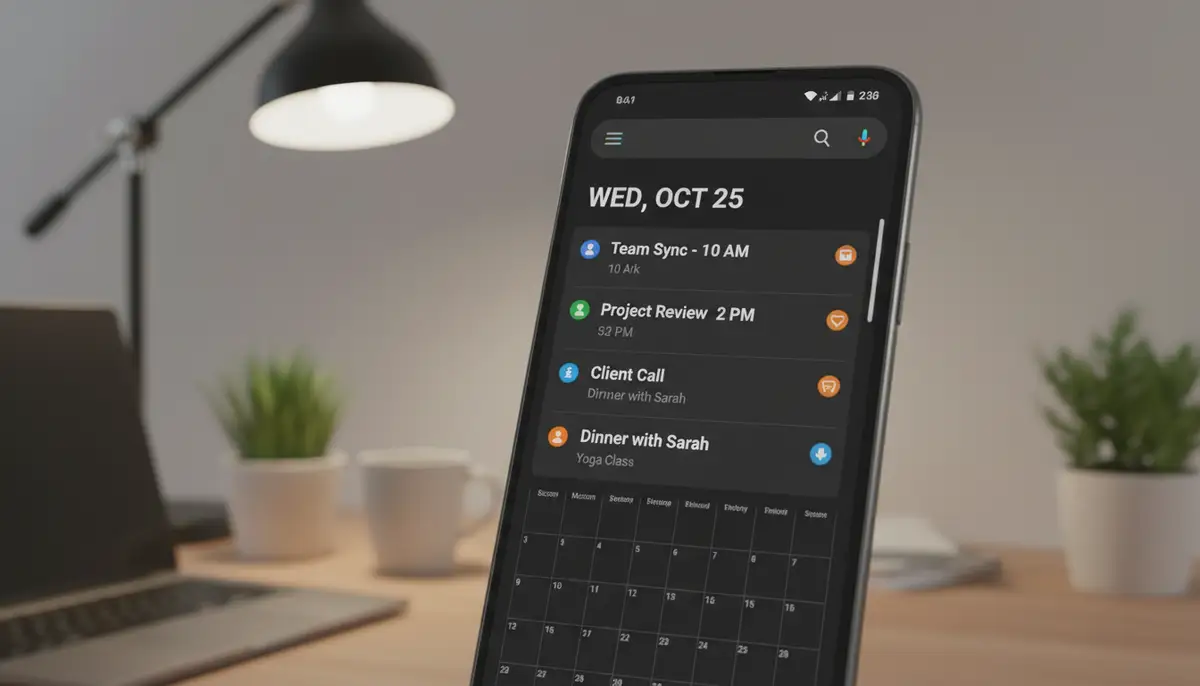
The 'Month' widget provides a broader overview. It shows a full month calendar with highlighted days that have events. Tapping on a specific day reveals its events. This widget is great for long-term planning. It helps you visualize your commitments across weeks. If you need to see the bigger picture, the 'Month' Google Calendar Android widget is your best bet.
Both widgets are highly functional. You can resize them to fit your home screen layout. Experiment with both to see which one fits your daily routine better. Many users even use both on different home screens. This allows for both immediate and long-term planning. This flexibility is a key strength of the Google Calendar Android widget.
Customizing Your Google Calendar Android Widget for Optimal Productivity
Personalization is key to making any tool truly effective. The Google Calendar Android widget is no exception. While Google's native customization options are somewhat limited, there are still ways to tailor it to your needs. You can adjust its size and placement. This ensures it fits perfectly with your chosen home screen widgets setup. Making the widget yours enhances its utility.
Resizing and Repositioning
After placing the Google Calendar Android widget, you can usually resize it. Just long-press the widget. You will see handles appear around its edges. Drag these handles to expand or shrink the widget. Repositioning is just as easy. Long-press and drag it to a new spot on your home screen. This simple adjustment can make a big difference in usability. It ensures the Google Calendar Android widget doesn't clutter your screen.
Theme and Transparency (Limited Native Options)
The native Google Calendar Android widget offers basic theme options. You can often choose between a light or dark theme. Some Android versions also allow adjusting transparency. To check these settings, long-press the widget and tap the 'Settings' or 'Edit' icon. These options help the widget blend with your overall phone theme. While not extensive, they offer some visual customization for your Google Calendar Android widget.
Advanced Customization with Third-Party Apps
For users seeking deeper customization, third-party widget apps are invaluable. These apps unlock a world of possibilities for your Google Calendar Android widget. They allow you to change colors, fonts, layouts, and even add custom actions. This level of control can truly transform your Android experience. You can create a unique and highly functional home screen. For instance, you might want to explore free widget Android options to enhance your calendar's look.
Many third-party solutions integrate with Google Calendar data. This allows for highly personalized displays. Companies like Widgetopia specialize in offering a vast collection of 100,000 free homescreen widgets for iPhone, iPad, and Android. You can remix existing designs or create your own from scratch. This makes your Google Calendar Android widget truly unique. Other solutions, such as Your Calendar Widget, offer extensive customization for your calendar events.
- Widgetopia: Offers extensive design tools to create custom widgets, including calendar displays that pull from Google Calendar. You can choose from thousands of templates.
- Your Calendar Widget: Provides highly configurable layouts, colors, and fonts for your Google Calendar events. It's known for its flexibility.
- KWGT Kustom Widget Maker: A powerful tool for advanced users to design almost any widget imaginable, including complex Google Calendar displays.
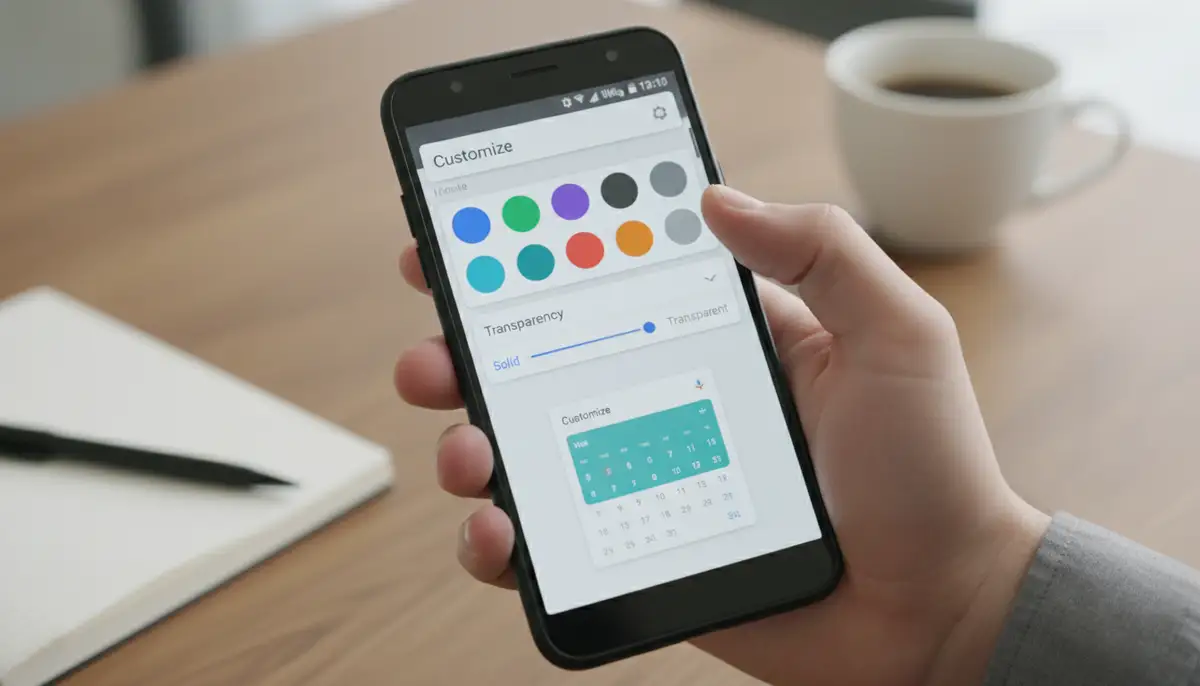
When considering third-party options, you might also look at competitors like Aesthetic Widgets, colorwidgets.app, or photowidget.net. These platforms also offer creative ways to personalize your phone. However, Widgetopia stands out with its massive library and user-friendly design tools. It empowers you to create a custom Android widget that perfectly matches your style and needs. This makes your Google Calendar Android widget both functional and beautiful.
Key Features and Benefits of the Google Calendar Android Widget
The Google Calendar Android widget offers more than just a pretty face. It provides several key features that enhance productivity. These benefits make it an indispensable tool for managing your daily life. Let's explore why so many users rely on this widget.
- Instant Overview: See your next appointments without opening the app. This saves precious seconds throughout your day.
- Quick Access: Tap an event on the widget to open its details directly in the Google Calendar app. This streamlines your workflow.
- Event Creation: Some widget implementations allow quick event creation directly from the home screen. This makes adding new tasks effortless.
- Multiple Calendars: If you use multiple Google Calendars (work, personal, family), the widget can display events from all of them. This provides a unified view.
- Customization Potential: While native options are basic, third-party apps greatly expand visual customization. This allows for a personalized look.
- Seamless Sync: The widget always stays in sync with your Google Calendar. Any changes you make in the app or on the web are reflected instantly.
These features combine to create a powerful productivity hub on your Android device. The Google Calendar Android widget helps you stay on top of your commitments. It reduces the mental load of remembering everything. You can trust that your schedule is always visible and up-to-date.
Troubleshooting Common Google Calendar Android Widget Issues
Even the most reliable tools can sometimes encounter glitches. If your Google Calendar Android widget isn't working as expected, don't worry. Most issues are easy to fix. Here are some common problems and their solutions. These steps will help you get your widget back on track.
- Widget Not Updating: Ensure your Google Calendar app is syncing correctly. Go to your phone's Settings > Accounts > Google, and check 'Calendar Sync'. Also, check your internet connection.
- Widget Disappeared: The widget might have been accidentally removed. Follow the steps in the 'Getting Started' section to re-add the Google Calendar Android widget.
- Blank Widget: This often indicates a sync issue or corrupted cache. Try clearing the cache for the Google Calendar app (Settings > Apps > Calendar > Storage > Clear cache).
- Widget Not Responding: Restart your phone. This simple step can resolve many temporary software glitches affecting the Google Calendar Android widget.
- Incorrect Time Zone: Verify your phone's time zone settings. Also, check the time zone settings within the Google Calendar app itself.
For more visual guidance on troubleshooting, you might find this tutorial helpful:
. It walks you through the setup, which can often resolve underlying issues. Regularly checking for app updates also helps. Developers often release fixes for known bugs. Keeping your Google Calendar app updated ensures optimal performance for your widget.Optimizing Your Android Home Screen with the Google Calendar Widget
A well-organized home screen is a productive home screen. The Google Calendar Android widget plays a central role in this. By strategically placing and sizing your widget, you can create an efficient dashboard. This dashboard gives you all the information you need at a glance. Think about what information you access most frequently. Then, arrange your widgets accordingly.
Placement Strategies
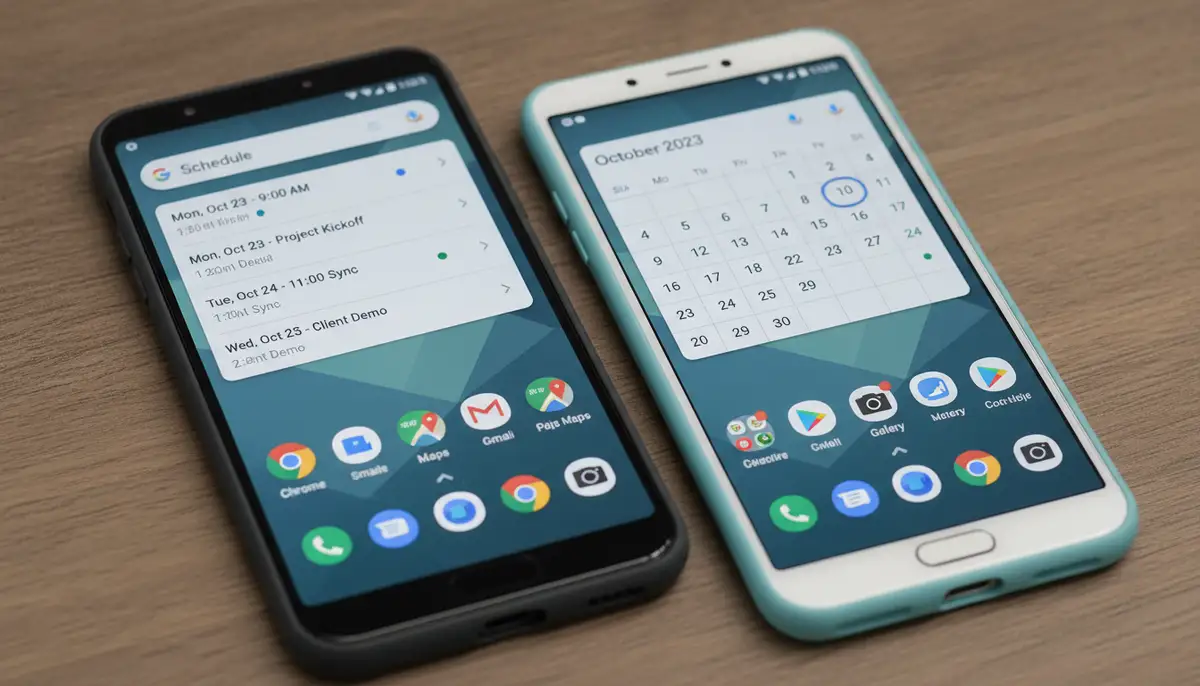
Consider placing your Google Calendar Android widget on your primary home screen. This ensures it's the first thing you see. If you have multiple home screens, dedicate one to productivity widgets. This might include your calendar, to-do list, and weather. This focused approach reduces distractions. It helps you stay in a productive mindset.
Combining with Other Widgets
The Google Calendar Android widget works best when paired with complementary tools. For instance, a to-do list widget can sit right next to your calendar. This gives you a complete overview of your day's tasks and appointments. Weather widgets, note-taking widgets, and quick-access app launchers also integrate well. The goal is to create a seamless information flow. This makes your Android device a true productivity powerhouse.
| Widget Type | Benefit | Example App/Use Case |
|---|---|---|
| Google Calendar (Schedule) | Quick view of upcoming events | Official Google Calendar app |
| Google Calendar (Month) | Long-term planning, event overview | Official Google Calendar app |
| To-Do List | Manage daily tasks and priorities | Google Tasks, TickTick |
| Weather | Plan your day around forecasts | Google Weather, AccuWeather |
| Notes/Reminders | Capture quick thoughts, set reminders | Google Keep, Evernote |
| Custom Widget (e.g., Widgetopia) | Personalized data display, unique aesthetics | Widgetopia, KWGT |
The Future of the Google Calendar Android Widget in 2025 and Beyond
As technology evolves, so do our expectations for productivity tools. In 2025, the Google Calendar Android widget continues to adapt. We can anticipate even more intelligent features. Imagine a widget that proactively suggests event times. Or one that integrates even deeper with AI assistants. The possibilities are exciting for the Google Calendar Android widget.
Google is constantly refining its ecosystem. We expect to see improved integration with other Google services. This includes Google Assistant, Google Maps, and even smart home devices. Your Google Calendar Android widget could become the central hub for your entire digital life. It will offer smart notifications and contextual information. This evolution will make managing your schedule even more effortless.
AI-Powered Enhancements
Artificial intelligence will likely play a larger role. Future versions of the Google Calendar Android widget might offer predictive scheduling. It could analyze your habits and suggest optimal times for tasks. It might also automatically categorize events or suggest contacts for meetings. These AI-powered features will make the Google Calendar Android widget even smarter and more intuitive.
Richer Interactive Elements
Expect more interactive elements directly on the widget. You might be able to mark tasks as complete. Or quickly reschedule an event with a swipe. These actions would reduce the need to open the full app. This makes the Google Calendar Android widget even more powerful. It brings more functionality right to your home screen.
Conclusion: Embrace the Power of the Google Calendar Android Widget
The Google Calendar Android widget is a simple yet incredibly powerful tool. It helps you maintain control over your schedule. From basic setup to advanced customization, it offers flexibility for every user. By integrating it effectively into your home screen, you can boost your productivity. You will stay informed and reduce stress. It's an indispensable part of any organized Android user's toolkit in 2025.
Take the time to explore its features. Experiment with different layouts and third-party apps like Widgetopia. You will find that the Google Calendar Android widget quickly becomes an essential part of your daily routine. It helps you make the most of every moment. Start optimizing your Android home screen today with this fantastic widget. You'll wonder how you ever managed without it.