Introduction: The Power of a Custom Android Widget in 2025
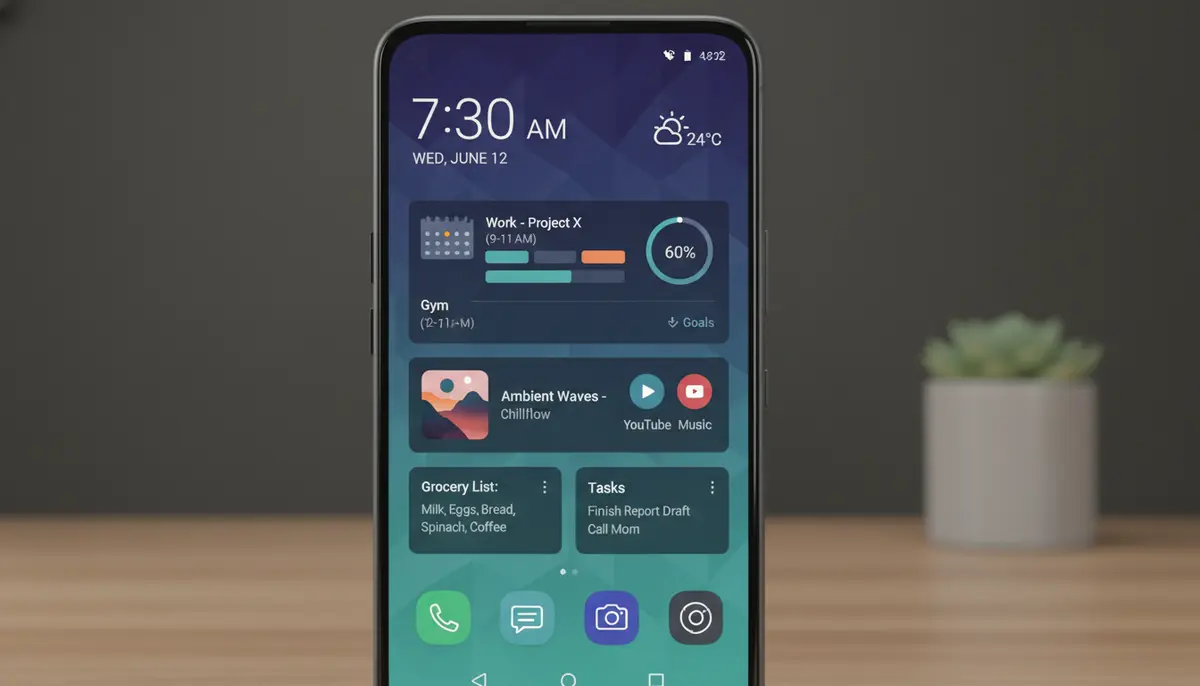
Your Android phone is more than just a device. It's a personal extension of yourself. In 2025, customization is not just a luxury; it's a necessity. One of the most impactful ways to personalize your device is by creating a custom Android widget. These small, interactive windows on your home screen can transform how you use your phone. They offer quick access to information and functions without opening full apps.
Imagine having a widget that perfectly matches your aesthetic. It displays exactly the information you need, right when you need it. This guide will walk you through everything about creating and using a custom Android widget. We'll cover both no-code solutions and more advanced coding methods. Get ready to unleash the full potential of your Android home screen.
Why Create Your Own Custom Android Widget?
Stock widgets are fine, but they often lack personality. They might not fit your specific workflow or design preferences. A custom Android widget solves these problems. Here's why you should consider making your own:
- Unmatched Personalization: Design widgets that truly reflect your style, from colors and fonts to layouts and data sources.
- Enhanced Productivity: Get critical information at a glance. Access frequently used app functions directly from your home screen. This saves time and taps.
- Aesthetic Harmony: Create a cohesive look across your entire home screen. Ensure every element, including your custom Android widget, complements your chosen theme.
- Unique Functionality: Combine data from multiple sources. Build widgets that perform specific tasks not offered by standard apps.
By taking control of your home screen, you make your phone truly yours. A custom Android widget is a powerful tool for this transformation.
Understanding the Basics: What is a Widget?
Before diving into creation, let's clarify what a widget is. A widget is a small application that runs on your Android home screen. It provides quick access to an app's features or data. Think of it as a mini-app that lives outside the app drawer. If you want a deeper dive into the fundamental concept, check out our comprehensive guide on what is widget on android. This article explains the core functionality and benefits.
Widgets are different from shortcuts. Shortcuts launch an app. Widgets display information and can often perform actions. For example, a music player widget might show the current song. It could also have buttons to play, pause, or skip tracks. Custom widgets take this a step further. They let you define exactly what information to display and how to interact with it.
Getting Started: No-Code Solutions for Your Custom Android Widget
You don't need to be a programmer to create a stunning custom Android widget. Many powerful apps let you design widgets with a drag-and-drop interface. These tools are perfect for beginners and experienced designers alike. They offer incredible flexibility without writing a single line of code.
KWGT Kustom Widget Maker: A Popular Choice
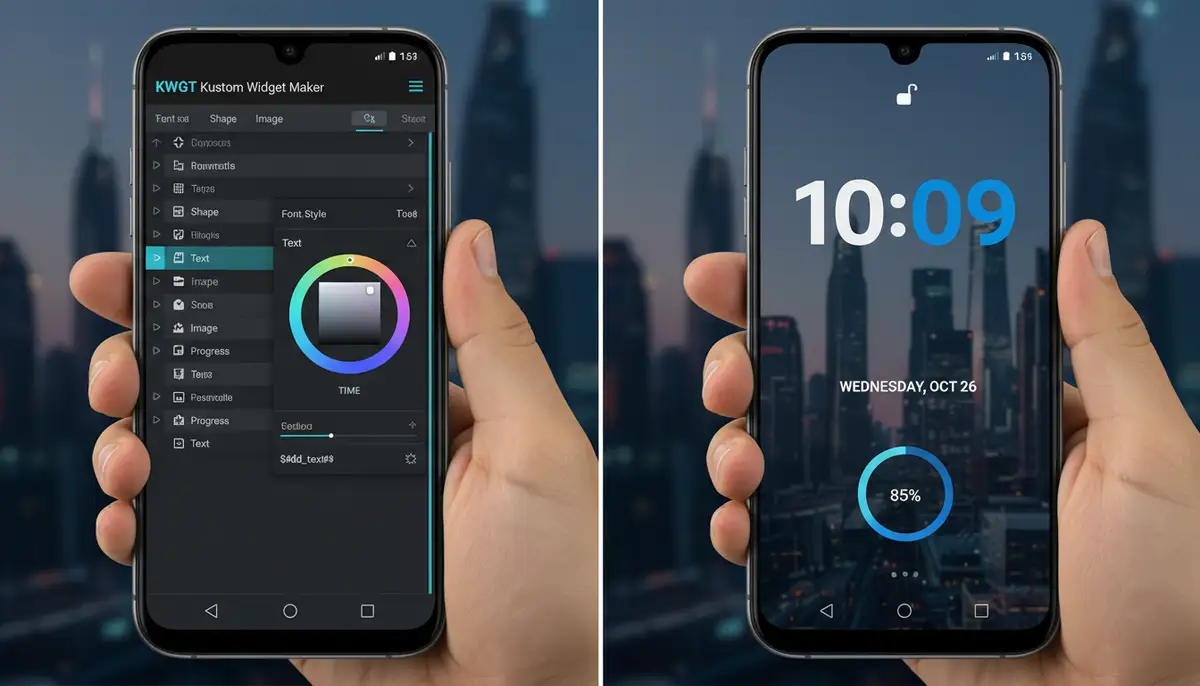
KWGT (Kustom Widget Maker) is one of the most popular tools for creating a custom Android widget. It offers an extensive range of features. You can design everything from simple clocks to complex data displays. KWGT provides a visual editor where you can add text, shapes, images, and progress bars. You can also connect to various data sources. This includes weather, calendar, battery, and even RSS feeds. If you're tired of the same old widgets, with KWGT, the most powerful widget maker on Google Play, you have the freedom to design your own custom widgets. Read more about KWGT on the Google Play Store.
Designing with Widgetopia: Your Creative Hub
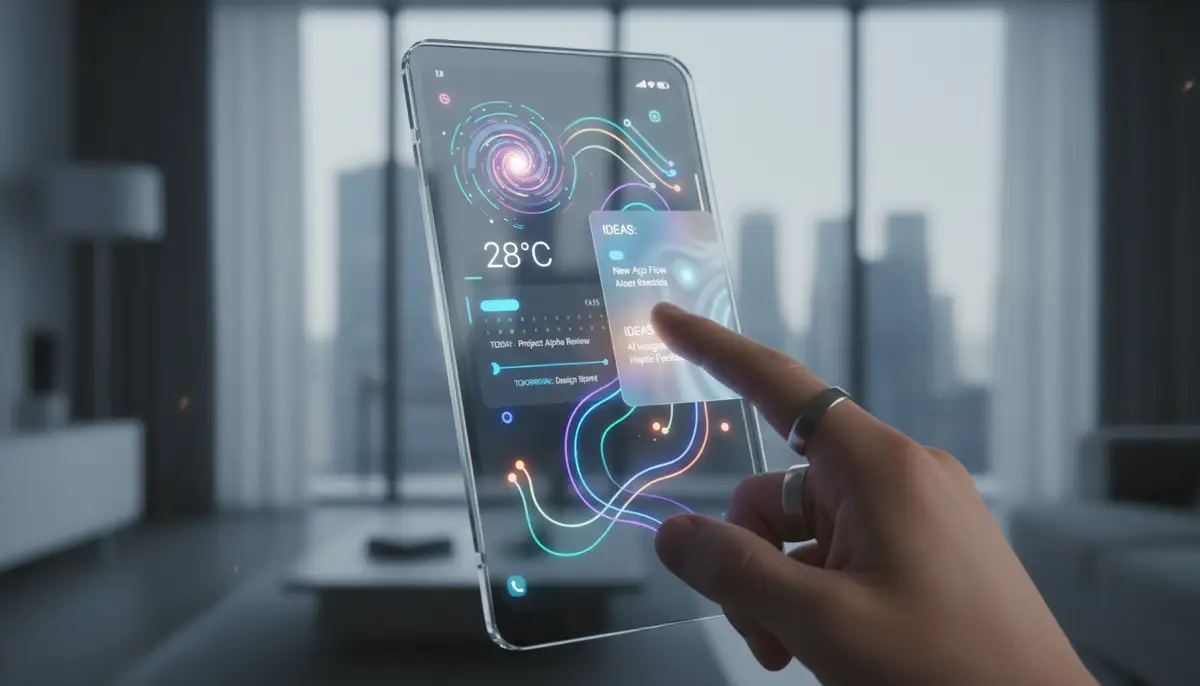
Another excellent platform for creating a custom Android widget is Widgetopia. Widgetopia offers a vast collection of over 100,000 free home screen widgets for both iOS and Android. This makes it a fantastic resource for inspiration. You can remix existing designs or start from scratch. Our platform provides intuitive tools for designing your own unique custom Android widget. Whether you want a simple clock or a complex data dashboard, Widgetopia has the features you need. It's a great choice for anyone looking to personalize their home screen widgets with ease.
Step-by-Step: Creating a Basic Custom Android Widget (No-Code)
Let's walk through the general steps to create a simple custom Android widget using a no-code tool like KWGT or Widgetopia:
- 1. Download the App: Install your chosen widget maker (e.g., KWGT, Widgetopia) from the Google Play Store.
- 2. Add a Widget to Home Screen: Long-press on your home screen. Select 'Widgets'. Find your app's widget (often labeled by size, like 'KWGT 4x2'). Drag it to your desired spot.
- 3. Open the Editor: Tap the newly placed blank widget. This will open the app's editor interface.
- 4. Start Designing: Inside the editor, you'll see options to add elements. These include text, shapes, images, and progress bars.
- 5. Add a Text Element: Tap the '+' icon. Choose 'Text'. Tap the new text item to edit its properties. You can set the font, size, color, and position.
- 6. Add a Data Source: For a clock, use a formula like '$df(hh:mm)$' for time. For weather, select a weather component. The app usually has a list of predefined data formulas.
- 7. Customize Appearance: Adjust padding, layer order, and animations. Make sure your custom Android widget looks exactly how you want it.
- 8. Save and Apply: Once satisfied, save your design. It will automatically appear on your home screen.
This process allows for endless creativity. You can continually refine your custom Android widget until it's perfect.
Diving Deeper: Code-Based Custom Android Widget Development
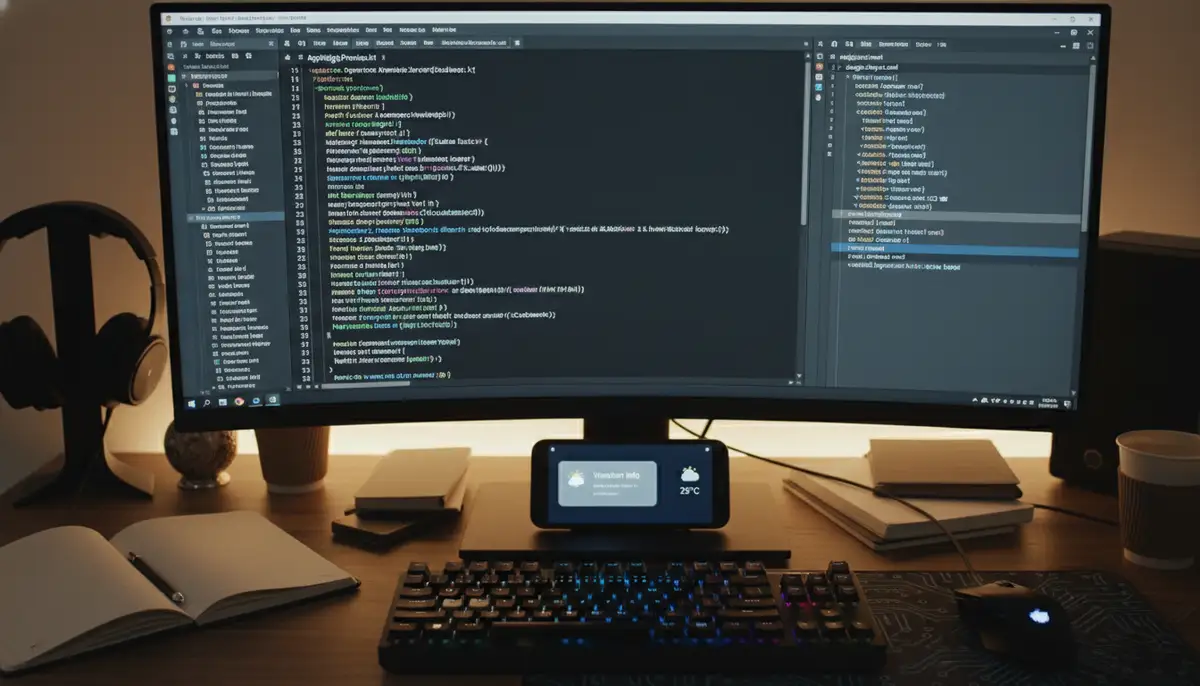
For developers or those seeking ultimate control, building a custom Android widget with code is the way to go. This approach offers unparalleled flexibility. You can integrate complex logic and custom data sources. It also allows for highly specific interactions. This method requires some knowledge of Android development, including Java or Kotlin and XML.
When to Choose Code-Based Development
You might opt for coding your custom Android widget if:
- You need highly specific functionality not available in no-code tools.
- You want to integrate your widget deeply with an existing Android application.
- You require custom data processing or complex background tasks.
- You are developing a widget for distribution on the Google Play Store.
For detailed technical documentation, the official Android developer guide on app widgets is an invaluable resource. This guide covers everything from basic setup to advanced features.
Key Components of a Coded Custom Android Widget
Building a custom Android widget involves several core components:
- AppWidgetProviderInfo XML: This file defines the widget's metadata. It includes its layout, update frequency, and initial size.
- AppWidgetProvider Class: This is a BroadcastReceiver subclass. It handles widget lifecycle events like updates, enabling, and disabling. It’s where you update the widget's UI.
- Widget Layout XML: This defines the visual structure of your widget. You use standard Android UI elements like TextViews, ImageViews, and Buttons.
- RemoteViews: Widgets don't directly interact with your app's UI. Instead, you use RemoteViews to update the layout. RemoteViews can inflate a layout file and manipulate its views.
Understanding these components is crucial for successful development. Each part plays a vital role in how your custom Android widget functions.
Basic Steps for Coding a Custom Android Widget
- 1. Create a New Android Project: Start a new project in Android Studio.
- 2. Define AppWidgetProviderInfo: Create an XML file (e.g., `appwidget_info.xml`) in `res/xml`. Define properties like `minWidth`, `minHeight`, `updatePeriodMillis`, and `initialLayout`.
- 3. Design the Widget Layout: Create a layout XML file (e.g., `widget_layout.xml`) in `res/layout`. Use standard views, but remember the limitations of RemoteViews.
- 4. Create AppWidgetProvider Class: Extend `AppWidgetProvider`. Override methods like `onUpdate()`. This is where you'll update your custom Android widget's display.
- 5. Update Widget UI with RemoteViews: Inside `onUpdate()`, create a `RemoteViews` object. Use `setTextViewText()`, `setImageViewResource()`, etc., to update your layout.
- 6. Register in Manifest: Declare your `AppWidgetProvider` in `AndroidManifest.xml`. Include an intent filter for `ACTION_APPWIDGET_UPDATE` and a `
` tag referencing your `AppWidgetProviderInfo`. - 7. Test Your Widget: Run your app on a device or emulator. Add your custom Android widget to the home screen to see it in action.
This foundational process allows you to build a robust custom Android widget. You can then add more complex features as needed.
Design Principles for Your Custom Android Widget
Whether you're using a no-code tool or writing code, good design is paramount. A well-designed custom Android widget is both functional and beautiful. It enhances the user experience, rather than cluttering it.
- Keep it Simple: Widgets are for quick glances. Avoid overwhelming users with too much information. Focus on one primary function or piece of data.
- Clarity and Readability: Use clear fonts and contrasting colors. Ensure all text is easy to read at a glance. Your custom Android widget should be legible.
- Match Your Theme: Design your widget to complement your overall home screen aesthetic. Consistency creates a polished look.
- Responsiveness: Consider different screen sizes and orientations. Your custom Android widget should adapt gracefully.
- Interactivity: If your widget has interactive elements, make them intuitive. Users should understand what tapping a button will do.
Thoughtful design makes your custom Android widget a joy to use. It becomes an integral part of your daily mobile experience.
Popular Custom Widget Ideas for Inspiration
The possibilities for a custom Android widget are virtually endless. Here are some popular ideas to spark your creativity:
- Minimalist Clock/Date: A clean, stylish display of time and date that matches your wallpaper.
- Advanced Weather Widget: More than just temperature. Show humidity, wind speed, UV index, and a multi-day forecast. For an in-depth look at existing solutions, explore our guide on the android weather widget.
- Calendar Agenda: Display upcoming events from your calendar in a compact, easy-to-read format.
- To-Do List/Notes: Quick access to your most important tasks or a scratchpad for sudden ideas.
- System Info Widget: Monitor battery level, RAM usage, storage, and network speed.
- Quick Launchers: Create custom buttons to open specific apps or perform actions like toggling Wi-Fi.
- News/RSS Feed Reader: Display headlines from your favorite news sources or blogs.
Each of these ideas can be adapted to become a unique custom Android widget. Tailor it to your precise needs and preferences.
Advanced Customization Techniques for Your Custom Android Widget
Once you've mastered the basics, you can explore more advanced features. These techniques can make your custom Android widget even more dynamic and powerful.
Dynamic Content and Interactivity
Consider widgets that change based on context. A widget could show different information depending on the time of day. It might display work tasks during office hours and personal reminders in the evening. You can also add more complex interactions. This includes buttons that trigger specific app functions or even launch deep links into other apps. Learning how to make custom widgets on Android can be greatly enhanced by visual guides. Check out this helpful video:
.
Conditional Formatting
Implement rules that change the widget's appearance. For example, a battery widget could turn red when the charge is low. A weather widget might change its background based on current conditions. This adds a layer of visual feedback. It makes your custom Android widget more informative at a glance.
Integrating Third-Party APIs
For coded widgets, you can integrate with almost any online service. Pull data from your smart home devices, fitness trackers, or project management tools. This transforms your custom Android widget into a central hub for your digital life.
Troubleshooting Common Custom Android Widget Issues
Even with the best tools, you might encounter issues. Here are some common problems and their solutions:
| Issue | Possible Cause | Solution |
|---|---|---|
| Widget Not Updating | App battery optimization, infrequent update interval | Disable battery optimization for the widget app. Increase update frequency in widget settings or code. |
| Widget Disappears/Resets | Launcher issues, app uninstallation, system clear cache | Re-add the widget. Check if the app is still installed. Avoid clearing app data. |
| Widget Too Small/Large | Incorrect sizing in appwidget_info.xml or design tool | Adjust `minWidth`/`minHeight` in XML or resize handles in no-code editor. Ensure your custom Android widget fits the grid. |
| Permissions Denied | Missing storage, location, or notification permissions | Go to App Info > Permissions for the widget app. Grant all necessary permissions. |
| Blank Widget | Design error, data source not configured, update failure | Re-check your design. Ensure data sources are correctly linked. Force an update from the widget app. |
Most widget problems are easily fixable. A little patience and systematic troubleshooting usually resolve them. For general Android home screen customization tips, Google Support offers helpful advice on adding apps, shortcuts & widgets to your Home screens. You can customize your Home screens to quickly get to your favorite content.
The Future of Custom Android Widgets
The landscape of Android customization is constantly evolving. In 2025, we're seeing even more sophisticated capabilities for a custom Android widget. Android 12 introduced significant changes to widgets, focusing on dynamic colors and rounded corners. Future versions will likely continue this trend. They will offer deeper integration with the system theme and more interactive elements.
Expect to see more AI-powered widgets. These could predict your needs and display relevant information proactively. Imagine a custom Android widget that knows your commute. It shows traffic updates just before you leave. Or it suggests tasks based on your calendar. The potential for intelligent, adaptive widgets is immense.
Choosing the Right Tool for Your Custom Android Widget
With so many options, how do you pick the best tool? It depends on your skill level and specific goals. For beginners and design enthusiasts, no-code solutions are ideal. Apps like KWGT and Widgetopia offer incredible power without coding. They let you focus purely on aesthetics and functionality. Other popular options in the market include colorwidgets.app, photowidget.net, and Aesthetic Widgets, each offering unique features for home screen personalization.
If you're an experienced developer or need very specific integrations, coding your custom Android widget provides maximum flexibility. This path offers complete control over every aspect. It allows for complex logic and deep system interaction. Our platform, Widgetopia, aims to bridge this gap by offering both extensive pre-designed options and powerful tools for creating your own custom Android widget from scratch, catering to a wide range of users.
Conclusion: Master Your Home Screen with a Custom Android Widget
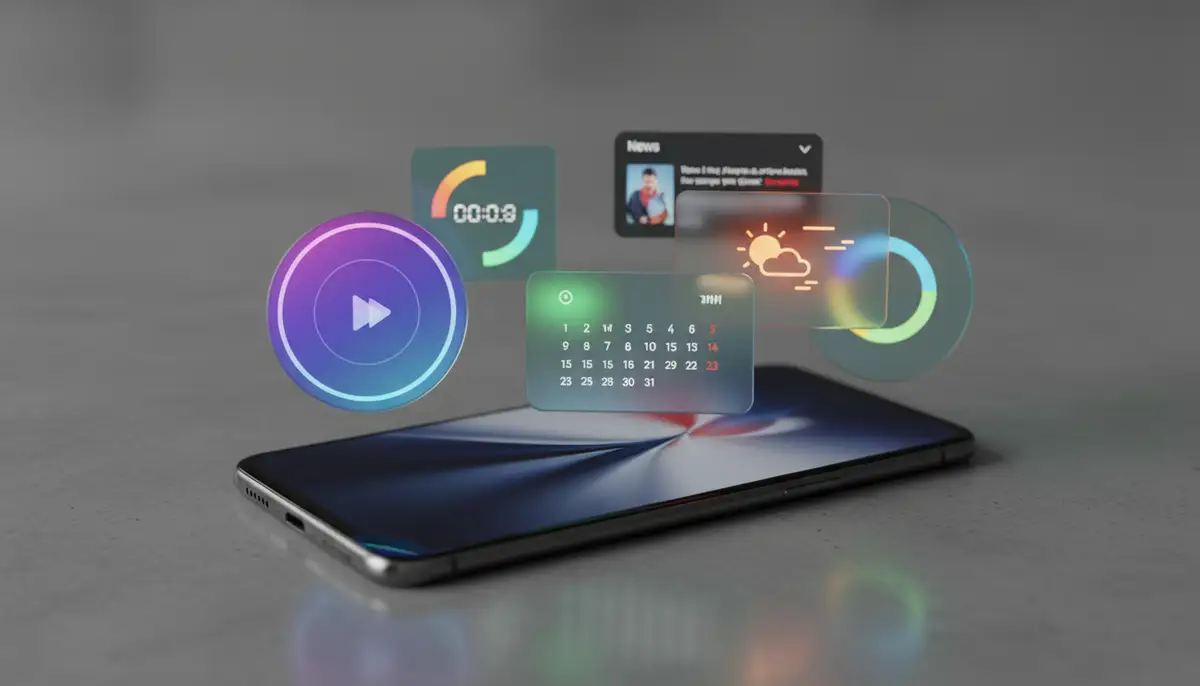
Creating a custom Android widget is one of the most rewarding ways to personalize your smartphone. It transforms your device from a generic tool into a truly unique extension of your personality and workflow. Whether you choose a no-code solution or dive into development, the power to create is now in your hands. You can design a widget that is not only visually appealing but also incredibly functional. It puts the information you need most right at your fingertips.
Embrace the freedom of customization. Experiment with different designs and functionalities. Make your home screen work for you. A custom Android widget is more than just a decorative element. It's a statement about how you interact with your digital world. Start building your perfect home screen today. Explore the endless possibilities of home screen widgets and make your Android experience truly your own.